Proud Member

Grab My Blinkies Here
Tuesday, October 13, 2015
Samhain
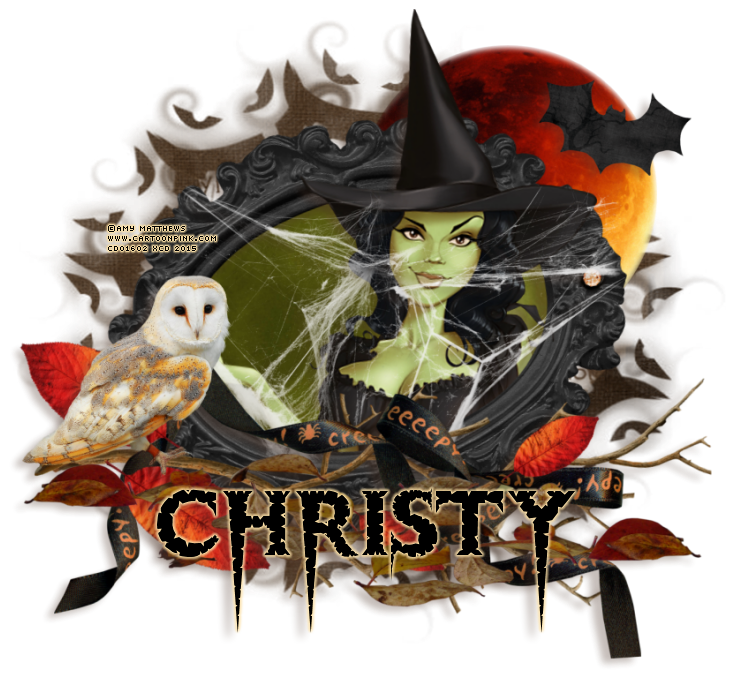
Samhain
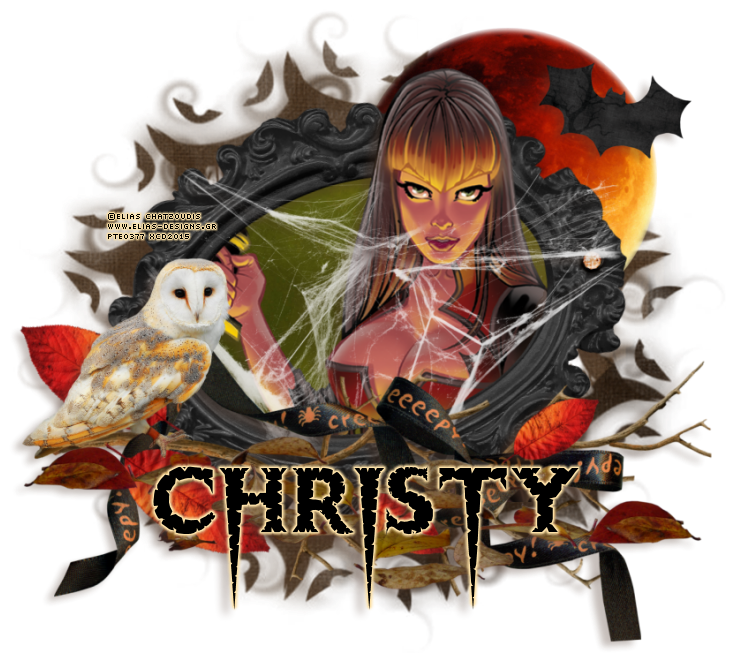
Tube of choice, I used Elias Chatzoudis and Amy Matthews
Scrap kit of choice, I used Samhain by xclusively christy scraps (full size used)
Font of choice, I used Thriller
Graphic Program of choice, I use PSP 9
This tutorial assumes you have working knowledge of paint shop pro,
All of my tutorials are my own creation and any similarity
with any other tutorial is purely coincidential.
Please do not copy my tutorials to anyplace, please link back to my blog!
Open a new image 850x850 and flood fill white,
I Like to have room to work, this is your choice,
My tuts are written using this size image
Open xcd-paper18 and resize to 750x750 (20%) copy and paste
as a new layer and apply a mask of choice I used Vix_maskhalloween0901
merge group,
Now open xcd-frame1 c/p as a new layer and resize by 28%
rotate to the left by 18% grab your magic wand and click inside
the frame opening and expand by 9, invert and open xcd-paper16
resize by 750x750or 21% and c/p as a new layer below the frame
hit delete and select none, now open xcd-branch c/p as a new layer
bring to the top, mirror and then resize by 72% and arrange to your
liking, now open xcd-owl, c/p as a new layer and resize by 30%
and arrange to your liking, open xcd-leaf5 c/p as a new layer and resize
by 48% duplicate and mirror, arrange to your liking, now open xcd-leaf3
c/p as a new layer right above the branch layer and resize by 18%
then rotate to the right by 24% I duplicated mine a few times, and
rotated or flipped them,I also resized them some too
now open xcd-web2 c/p as a new layer
right above the frame layer and resize by 58%. Open xcd-bloodmoon
c/p as a new layer above the mask layer and resize by 45%
open xcd-bat c/p as a new layer resize by 45% two times
now open xcd-ribbon1 c/p as a new layer and rotate to the right
by 90% resize by 65% and arrange this to right above the branch
layer, now add a dropshadow and tube of choice, hide your white
background layer and merge visible.
I always resize my finished tag BEFORE adding my copyright info,
it makes this seem clearer, add your name and copy right
information and Save the way you prefer to save tags,
I hope you enjoyed this tut
smiles
christy
Ü
Tube of choice, I used Elias Chatzoudis and Amy Matthews
Scrap kit of choice, I used Samhain by xclusively christy scraps (full size used)
Font of choice, I used Thriller
Graphic Program of choice, I use PSP 9
This tutorial assumes you have working knowledge of paint shop pro,
All of my tutorials are my own creation and any similarity
with any other tutorial is purely coincidential.
Please do not copy my tutorials to anyplace, please link back to my blog!
Open a new image 850x850 and flood fill white,
I Like to have room to work, this is your choice,
My tuts are written using this size image
Open xcd-paper18 and resize to 750x750 (20%) copy and paste
as a new layer and apply a mask of choice I used Vix_maskhalloween0901
merge group,
Now open xcd-frame1 c/p as a new layer and resize by 28%
rotate to the left by 18% grab your magic wand and click inside
the frame opening and expand by 9, invert and open xcd-paper16
resize by 750x750or 21% and c/p as a new layer below the frame
hit delete and select none, now open xcd-branch c/p as a new layer
bring to the top, mirror and then resize by 72% and arrange to your
liking, now open xcd-owl, c/p as a new layer and resize by 30%
and arrange to your liking, open xcd-leaf5 c/p as a new layer and resize
by 48% duplicate and mirror, arrange to your liking, now open xcd-leaf3
c/p as a new layer right above the branch layer and resize by 18%
then rotate to the right by 24% I duplicated mine a few times, and
rotated or flipped them,I also resized them some too
now open xcd-web2 c/p as a new layer
right above the frame layer and resize by 58%. Open xcd-bloodmoon
c/p as a new layer above the mask layer and resize by 45%
open xcd-bat c/p as a new layer resize by 45% two times
now open xcd-ribbon1 c/p as a new layer and rotate to the right
by 90% resize by 65% and arrange this to right above the branch
layer, now add a dropshadow and tube of choice, hide your white
background layer and merge visible.
I always resize my finished tag BEFORE adding my copyright info,
it makes this seem clearer, add your name and copy right
information and Save the way you prefer to save tags,
I hope you enjoyed this tut
smiles
christy
Ü
Sunday, December 21, 2014
Dreaming of a Pink Christmas

Dreaming of a Pink Christmas
Tube of choice, I used Caron Vinson and Pinuptoons
Scrap kit of choice, I used A Different Color for Christmas by
X-Clusively Christy Scraps (Full size used in tut)
Font of choice, I used Rambler Script
Graphic Program of choice, I use PSP 9
This tutorial assumes you have working knowledge of paint shop pro,
All of my tutorials are my own creation and any similarity
with any other tutorial is purely coincidential.
Please do not copy my tutorials to anyplace, please link back to my blog!
Open a new image 750x750 and flood fill white,
I Like to have room to work, this is your choice,
My tuts are written using this size image
Open paper12 and resize by 20% c/p as a new layer and
apply a mask of choice, I used Artmama mask 6 merge
group
Now open xcd-adc-frame4 c/p as a new layer and resize by
60%, grab your magic wand and click inside the frame opening
expand by 9 and invert, open paper 14 and resize by 18%
c/p as a new layer below the frame, arrange to your liking and
hit delete, select none, now open xcd-adc-tree2 c/p as a new
layer above the mask layer and resize by 60% and arrange to
your liking, open xcd-adc-greenery6 c/p as a new layer, bring
to the top and resize by 36% duplicate, mirror and arrange
this to right above the tree layer, Now open xcd-adc-greenery1
c/p as a new layer, arrange right below the top greenery, and
resize by 36% and rotate to the right by 21% duplicate and mirror
now open xcd-adc-greenery4 c/p as a new layer resize by 36%
arrange to your liking, open xcd-adc-greenery3 c/p as a new
layer, resize by 36% and place in the center of the greens you
have added, now open xcd-adc-leaf1 c/p as a new layer, move
below the layer you just added and resize by 30% and then rotate
to the left by 31% duplicate and mirror, now open xcd-adc-jar
c/p as a new layer, arrange right above the frame layer, resize
by 30% now open xcd-adc-candy and c/p and resize by 20%
now open xcd-adc-candy1 c/p as a new layer, arrange below
the jar layer, rotate to the right by 75% and resize by 22%
place it so it looks like it is "in" the jar, now open xcd-adc-berries1
c/p as a new layer and resize by 22% place to your liking open
xcd-adc-ornament1 c/p as a new layer, arrange right above the
greenery with the berries, and resize by 22% now open
xcd-adc-ornament2 and c/p as a new layer, arrange this to
right above the berries layer and resize by 22%, flip and mirror
now open xcd-adc-ornament4 c/p as a new layer above the
other ornaments and resize by 24%, open xcd-adc-snowflake1
c/p as a new layer, resize by 23% rotate to the left by 15%
and place to your liking, I duplicated mine and placed one behind
the ornaments, now open xcd-adc-snow c/p as a new layer, arrange
to right above the paper layer behind the frame, resize this to your
liking, grab your magic wand and go to the paper, layer, click on the
outside of the paper, go back to the snow layer and hit delete,
select none, add a tube and dropshadow of choice, hide the
white background layer and merge visible.
I did not dropshadow the jar in my examples!
I always resize my finished tag BEFORE adding my copyright info,
it makes this seem clearer, add your name and copy right
information and Save the way you prefer to save tags,
I hope you enjoyed this tut
smiles
christy
Ü

Tuesday, November 18, 2014
Winter Has Arrived

Winter Has Arrived
Tube of choice, I used Pinuptoons and Maryline Cazenave
Scrap kit of choice, I used Winter Friends (Full size kit)
by X-Clusively Christy Scraps
Font of choice, I used julietrose std
Graphic Program of choice, I use PSP 9
This tutorial assumes you have working knowledge of paint shop pro,
All of my tutorials are my own creation and any similarity
with any other tutorial is purely coincidential.
Please do not copy my tutorials to anyplace, please link back to my blog!
Open a new image 750x750 and flood fill white,
I Like to have room to work, this is your choice,
My tuts are written using this size image
Open wf-paper10 resize by 750x750(21%)
c/p as a new layer and apply a mask of choice
I used a mask that is named 33 in my stash (any snowflake mask will work)
Now open wf-frame2 and c/p as a new layer, resize by 45% and
rotate to the left by 9% grab your magic wand and click inside
the frame opening and expand by 9 and then invert, open
wf-paper2 resize by 20% (700x700) and paste below the frame
layer and hit delete, select none, now open wf-tree2 c/p
right above the mask layer and resize by 70% arrange to your
liking, open wf-greenery c/p as a new layer bring to the top
and resize by 32% I duplicated mine a few times mirroring
and rotating, arrange to your liking. Now open wf-greenery4
c/p right above the frame layer and resize by 16% again duplicate
flip mirror as many times as you want to fill in the space, now open
wf-greenery1 c/p as a new layer bring to the top and resize by
27% duplicate and mirror,open wf-greenery2 c/p as a new layer
again right above the frame layer and resize by 30% mirror and
rotate to the left by 21% paste again and resize by 40% and
rotate to the right by 75% duplicate and flip,duplicate and mirror,
now open wf-flower3 c/p as a new layer, bring to the top
and resize by 34% now duplicate and resize this one by 80%
arrange to your liking, open wf-flower4 c/p as a new layer below
the red flowers resize by 30% duplicate, now open wf-ribbon2
c/p as a new layer right above the greenery layer and resize
by 29% rotate to the right by 9% open wf-ribbon4 c/p as a
new layer below the other ribbon and resize by 40% rotate to
the left by 12% now open wf-candy c/p as a new layer above
the thin greenery but below the leaves, and resize by 42%
mirror and rotate to the left by 6% paste again and resize by
32% mirror and rotate left by 15% now add a dropshadow
and a tube of choice, hide the white background layer and merge
visible.
I always resize my finished tag BEFORE adding my copyright info,
it makes this seem clearer, add your name and copy right
information and Save the way you prefer to save tags,
I hope you enjoyed this tut
smiles
christy

Monday, October 13, 2014
Hello all!! Happy Fall
I am hoping to get back into tutorial writing soon,
I have recently created
a new Halloween scrap kit so will tut it, I so appreciate
you all that have left me messages and supported me
through the past 2 years, They have been very hard on us both.
Thank you from the bottom of my heart for your friendships
and support
I have recently created
a new Halloween scrap kit so will tut it, I so appreciate
you all that have left me messages and supported me
through the past 2 years, They have been very hard on us both.
Thank you from the bottom of my heart for your friendships
and support
smiles
christy
Monday, February 10, 2014
Sweet Heart

Sweet Heart
Tube of choice, I used Caron Vinson and Rion Vernon
Scrap kit of choice, I used Sweet Hearts by X-Clusively Christy Scraps
Font of choice, I used A&S Snapper Script
Graphic Program of choice, I use PSP 9
This tutorial assumes you have working knowledge of paint
shop pro, All of my tutorials are my own creation
and any similarity with any other tutorial is purely coincidential.
Please do not copy my tutorials to anyplace, please link back to my blog!
Open a new image 750x750 and flood fill white,
I Like to have room to work, this is your choice,
My tuts are written using this size image
open xcd-sweethearts-paper3 resize by 21%
(I am using my full size kit) apply a mask of
choice I used WSL_Mask173 now open
paper 14 resize like above and apply WSL_Mask202
Now open sweethearts-greenery2 c/p as a
new layer resize by 45% open sweethearts-greenery4
c/p as a new layer and resize by 42% duplicate mirror
and the flip, arrange to your liking. Now open
sweethearts-greenery3 c/p as a new layer
and resize by 25% duplicate, mirror and rotate to
the left by 45% open sweethearts-frame7 c/p as a
new layer and resize by 48% and rotate to the
right by 9% click inside the frame opening and
expand by 6 invert and open sweethearts-paper2
resize by 21% and c/p below the frame hit delete
and select none. Open sweethearts-ribbon2 c/p
as a new layer mirror and resize by 35%,
now open sweethearts-ribbon1 c/p as a new
layer and resize by 40% and flip arrange
along the bottom of the frame, open
sweethearts-beads and c/p as a new layer,
resize by 35% place below the ribbons,
duplicate and mirror and flip place this one
above the ribbons layer, now open
sweethearts-flower4 c/p as a new layer
resize by 35% arrange to your liking,
open sweethearts-flower8 c/p as a new layer
and resize by 35% mirror, open sweethearts-cookie1
c/p as a new layer and resize by 35% and
then rotate to the left by 12 now open sweethearts-candy4
c/p as a new layer and resize by 20% open sweethearts-candy1
c/p as a new layer and resize by 30% and rotate to
the right by 9 now add a dropshadow and a tube of choice,
hide the white background layer and merge visible.
I always resize my finished tag BEFORE adding my copyright info,
it makes this seem clearer, add your name and copy right information and
Save the way you prefer to save tags,
I hope you enjoyed this tut
smiles
christy
Ü

Happy Thanksgiving
I know this is a bit late for Thanksgiving
but the
holiday's were very hard for my husband
and I
and I just didnt have it in me to finish up
some
tuts or take care of my blog,
I am posting
this tut and a new one I wrote today (2-10-14)

Happy Thanksgiving!
Tube of choice, I used Caron Vinson and Rion Vernon
Scrap kit of choice, I used Turkey Time by Pimp'd Designz
Font of choice, I used Roselyn
Graphic Program of choice, I use PSP 9
This tutorial assumes you have working
knowledge of paint shop pro,
All of my
tutorials are my own creation and any similarity
with any other tutorial is purely coincidential.
Please do not copy my tutorials to anyplace,
please link back to my blog!
Open a new image 750x750 and flood fill white,
I Like to have room to work, this is your choice,
My tuts are written using this size image
open pd12-pp-08 c/p as a new layer
and apply a mask of
choice, I used
FallMask3byJenny merge group
Now open pd12-frame-02 c/p as a
new layer grab your
magic wand click
inside the frame opening and expand by
9
and invert, open pd12-pp-04 c/p as a new
layer below the
frame hit delete select none,
open pd12-branch-02 c/p as
a new layer,
resize by 72% now rotate to the left by 116%
now open pd12-leaf-03 c/p as a new layer,
resize by 60%
and rotate to the right by 15%
now open pd12-leaf-04 c/p
as a new layer
and resize by 55% rotate to the right by
36%
now open pd12-crow c/p as a new layer
resize by
55% and mirror, now open pd12-pumpkin2
c/p as a new
layer resize by 40%
open pd12-pumpkin1 c/p as a new layer
and resize by 48% open pd12-spoon c/p
as a new layer
resize by 48% rotate to the
right by 36% now open
pd12-ribbon-03 c/p
as a new layer rotate to the right by
90%
and mirror, resize by 30% now add a
dropshadow
and tube of choice,
hide the white background layer and
merge visible.
I always resize my finished tag BEFORE
adding my copyright info,
it makes this seem clearer,
add your name and copy right
information
and Save the way you prefer to save tags,
I hope you enjoyed this tut
smiles
christy
Ü


Sunday, November 3, 2013
Looks Like Christmas!

Looks Like Christmas
Tube of choice, I used Elias Chatzoudis (Exclusive to Dangerouz Mindz Forum) and Rion Vernon
Scrap kit of choice, I used Joy by Pimp'd Desingz
Font of choice, I used Saliere
Graphic Program of choice, I use PSP 9
This tutorial assumes you have working knowledge of paint shop pro,
All of my tutorials are my own creation and any similarity
with any other tutorial is purely coincidential.
Please do not copy my tutorials to anyplace, please link back to my blog!
Open a new image 750x750 and flood fill white,
I Like to have room to work, this is your choice,
My tuts are written using this size image
open pd13-pp-01 c/p as a new layer and apply a mask of choice
I used Vix_Mask8Christmas2010, merge group, now paste
pd13-pp-04 below that mask and apply another mask of
choice, I used Vix_MondayMask1 merge group, I stretched
this one out a bit so it shows outside the other mask layer,
now duplicate.
Now open pd13-frame-05 c/p as a new layer, grab your magic
wand and click inside the frame opening expand by 9 and invert
open pd13-pp-03 c/p as a new layer below the frame hit delete
and select none, open pd13-leaves-01 c/p as a new layer, below
the paper layer and resize by 58% rotate to the left by 36%,
duplicate and mirror, I duplicated it again and rotated it to the
left by 45% bring to the top duplicate and mirror, now open
pd13-flower-03 c/p as a new layer, resize by 84% arrange
above the frame layer, duplicate and mirror, I duplicated
again and this time placed it right above the leaves layer BELOW
the frame, duplicate and mirror, now open pd13-flower-04
c/p as a new layer right above the frame layer, resize by
80% and mirror, duplicate and mirror again, now open
pd13-candy-cane c/p as a new layer, above all the flower
layers, resize by 88% and rotate to the left by 12%
open pd13-ribbon-03 c/p as a new layer arrange below
your leaves layers and above the flowers layers, open
pd13-santa-hat c/p as a new layer, rotate to the right
by 13% and resize by 60% now open pd13-ribbon-04
c/p as a new layer, open pd13-button-01 c/p as a new
layer place in the center of the bow on the right, open
pd13-snowflake-02 c/p as a new layer and resize by 48%
rotate to the right by 21% and place in the center of the
button. open pd13-ornament c/p as a new layer, place
below the button layer and rotate to the left by 120%
now resize by 48% now open pd13-horn c/p as a new
layer, resize by 65% and place below the button layer
open pd13-gift-01 c/p as a new layer and resize by 65%
and mirror then rotate to the left by 26% arrange below
the leaves layer, now add a drop shadow and tube of choice
hide the white background layer and merge visible.
I always resize my finished tag BEFORE adding my copyright info,
it makes this seem clearer, add your name and copy right
information and Save the way you prefer to save tags,
I hope you enjoyed this tut
smiles
christy
Ü

Autumn Spice

Autumn Spice
Tube of choice, I used Cris Ortega and Sugargrl14
Scrap kit of choice, I used Autumn Spice by Pimp'd Designz
Font of choice, I used Aphrodite Stylist
Graphic Program of choice, I use PSP 9
This tutorial assumes you have working knowledge of paint shop pro,
All of my tutorials are my own creation and any similarity
with any other tutorial is purely coincidential.
Please do not copy my tutorials to anyplace, please link back to my blog!
Open a new image 750x750 and flood fill white,
I Like to have room to work, this is your choice,
My tuts are written using this size image
open pd13-pp-07 and c/p as a new layer duplicate
on the bottom layer apply Monti_blinds_mask 1
on the next layer apply SophisticatSimone_mask2
merge group
Now open pd13-frame-02 c/p as a new layer, resize
by 90% now grab your magic wand click inside the opening
and expand by 9% invert, open pd13-pp-06 c/p as a new
layer below the frame, resize by 68% and arrange to
your liking inside the frame, hit delete and select none.
open pd13-leaf-03 c/p as a new layer, arrange right above
the mask layers, rotate to the left by 26%, now open
pd13-leaf-02 c/p as a new layer below the leaves layer
now open pd13-leaf-04 c/p as a new layer, again this
is right above the mask layer,now open pd13-branch-01
c/p as a new layer, bring to the top and resize by 80%
open pd13-branch-02 c/p as a new layer, resize by
resize by 80%, open pd13-flower-02 c/p as a new layer
resize by 90% and rotate to the left by 90% open
pd13-flower-04 c/p as a new layer below the other
flower layer and resize by 90% open pd13-acorn-01
c/p as a new layer and bring to the top, resize by 90%
rotate to the right by 15% open pd13-acorn-02 c/p as
a new layer and resize by 90% now open pd13-leaf-01
c/p as a new layer arrange right above the frame layer
mirror and resize by 62% duplicate and rotate to the
left by 45% now duplicate and flip, open pd13-pinceones
c/p as a new layer, resize by 58% and mirror, arrange
below the acorns, open pd13-pumpkin-03 c/p as a new
layer, resize by 65% and place right above the flower
layers, open pd13-ribbon-03 c/p as a new layer, arrange
between the 2 branch layers and mirror. Now add a
dropshadow and tube of choice, hide the white background
layer and merge visible.
I always resize my finished tag BEFORE adding my copyright info,
it makes this seem clearer, add your name and copy right
information and Save the way you prefer to save tags,
I hope you enjoyed this tut
smiles
christy
Ü

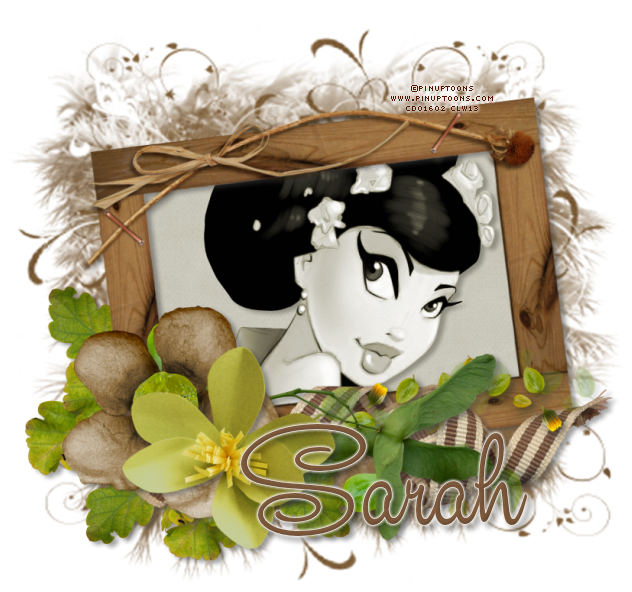
Almost Autumn

Almost Autumn
Tube of choice, I used Pinuptoons and Zindy S.D. Nielsen
Scrap kit of choice, I used Almost Autumn by Designs by Sarah
Font of choice, I used Studio Lettering Swing
Graphic Program of choice, I use PSP 9
This tutorial assumes you have working knowledge of paint shop pro,
All of my tutorials are my own creation and any similarity
with any other tutorial is purely coincidential.
Please do not copy my tutorials to anyplace, please link back to my blog!
Open a new image 750x750 and flood fill white,
I Like to have room to work, this is your choice,
My tuts are written using this size image
open sb_pmt_almost-autumn_pp5 and c/p as a new layer
apply a mask of choice, I used lrmask144 (this is a photomask)
now open sb_pmt_almost-autumn_frame 1 c/p as a new layer
resize by 90% and rotate to the left by 8% now stretch your mask
out just a bit to show around the frame, grab your magic wand
click inside the frame opening and expand by 9 and invert open
sb_pmt_almost-autumn_pp2 c/p below the frame and hit delete
select none, now open sb_pmt_almost-autumn_leaves bundle c/p as a
new layer right above the mask, duplicate and flip, duplicate
again and mirror, now open sb_pmt_almost-autumn_leaves
c/p as a new layer, bring to the top and mirror now open
sb_pmt_almost-autumn_paper flower 3 c/p as a new layer
right above the frame layer, mirror now lets open
sb_pmt_almost-autumn_paper flower 4 c/p as a new layer
resize by 82% now open sb_pmt_almost-autumn_ribbon 2
c/p as a new layer right above the frame layer now open
sb_pmt_almost-autumn_swirl1 c/p as a new layer right
above the frame and rotate to the right by 18% now add
a dropshadow and a tube of choice, hide the white background
layer and merge visible.
I always resize my finished tag BEFORE adding my copyright info,
it makes this seem clearer, add your name and copy right
information and Save the way you prefer to save tags,
I hope you enjoyed this tut
smiles
christy
Ü
Tube of choice, I used Pinuptoons and Zindy S.D. Nielsen
Scrap kit of choice, I used Almost Autumn by Designs by Sarah
Font of choice, I used Studio Lettering Swing
Graphic Program of choice, I use PSP 9
This tutorial assumes you have working knowledge of paint shop pro,
All of my tutorials are my own creation and any similarity
with any other tutorial is purely coincidential.
Please do not copy my tutorials to anyplace, please link back to my blog!
Open a new image 750x750 and flood fill white,
I Like to have room to work, this is your choice,
My tuts are written using this size image
open sb_pmt_almost-autumn_pp5 and c/p as a new layer
apply a mask of choice, I used lrmask144 (this is a photomask)
now open sb_pmt_almost-autumn_frame 1 c/p as a new layer
resize by 90% and rotate to the left by 8% now stretch your mask
out just a bit to show around the frame, grab your magic wand
click inside the frame opening and expand by 9 and invert open
sb_pmt_almost-autumn_pp2 c/p below the frame and hit delete
select none, now open sb_pmt_almost-autumn_leaves bundle c/p as a
new layer right above the mask, duplicate and flip, duplicate
again and mirror, now open sb_pmt_almost-autumn_leaves
c/p as a new layer, bring to the top and mirror now open
sb_pmt_almost-autumn_paper flower 3 c/p as a new layer
right above the frame layer, mirror now lets open
sb_pmt_almost-autumn_paper flower 4 c/p as a new layer
resize by 82% now open sb_pmt_almost-autumn_ribbon 2
c/p as a new layer right above the frame layer now open
sb_pmt_almost-autumn_swirl1 c/p as a new layer right
above the frame and rotate to the right by 18% now add
a dropshadow and a tube of choice, hide the white background
layer and merge visible.
I always resize my finished tag BEFORE adding my copyright info,
it makes this seem clearer, add your name and copy right
information and Save the way you prefer to save tags,
I hope you enjoyed this tut
smiles
christy
Ü
The Autumn Window
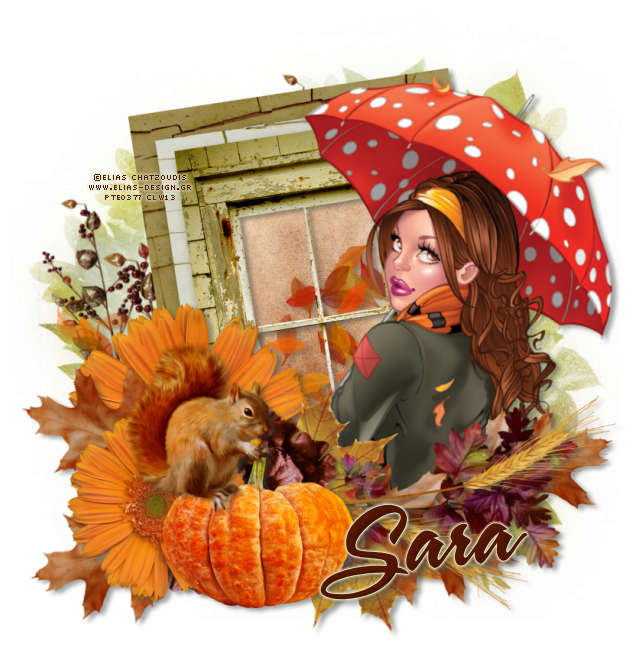
The Autumn Window
Tube of choice, I used Elias Chatzoudis
Scrap kit of choice, I used A County Autumn by Inzpired Creationz
Font of choice, I used A&S Snapper Script
Graphic Program of choice, I use PSP 9
This tutorial assumes you have working knowledge of paint shop pro,
All of my tutorials are my own creation and any similarity
with any other tutorial is purely coincidental.
Please do not copy my tutorials to anyplace, please link back to my blog!
Open a new image 750x750 and flood fill white,
I Like to have room to work, this is your choice,
My tuts are written using this size image
Open paper 3 and c/p as a new layer, apply a mask of choice
I used DD_Fallmask 4 merge group
open scattered leaves and c/p as a new layer, now open
frame 4-Window and c/p as a new layer grab your magic
wand and click the openings and expand by 9 invert, and open
paper 2 c/p below the frame and hit delete, select none, move
the paper below the leaves scatter now open branch4 and
c/p as a new layer, bring to the top, resize by 80% and
rotate left by 15% open branches 1 and c/p as a new layer
arrange below the paper layer, mirror and rotate left by 30%
open flower 1 c/p as a new layer arrange right above the
frame resize by 80% open flower 9 and c/p as a new
layer below the other flower, duplicate, bring to the top
and resize by 72% open leaf 4 c/p as a new layer, resize
by 64% and place below the branch layer, duplicate and
rotate to the right by 36% duplicate and flip, and mirror
duplicate and flip again, now open leaf 1 c/p as a new layer
resize by 64% duplicate and flip arrange all to your liking, now
open pumpkin2 c/p as a new layer, resize by 64% open
squirrel and c/p as a new layer and resize by 65% now open
wheat 3 c/p as a new layer right above the branch layer
duplicate and flip, now add a dropshadow and tube of choice
hide the white background layer and merge visible.
I always resize my finished tag BEFORE adding my copyright info,
it makes this seem clearer, add your name and copy right
information and Save the way you prefer to save tags,
I hope you enjoyed this tut
smiles
christy
Ü
Tube of choice, I used Elias Chatzoudis
Scrap kit of choice, I used A County Autumn by Inzpired Creationz
Font of choice, I used A&S Snapper Script
Graphic Program of choice, I use PSP 9
This tutorial assumes you have working knowledge of paint shop pro,
All of my tutorials are my own creation and any similarity
with any other tutorial is purely coincidental.
Please do not copy my tutorials to anyplace, please link back to my blog!
Open a new image 750x750 and flood fill white,
I Like to have room to work, this is your choice,
My tuts are written using this size image
Open paper 3 and c/p as a new layer, apply a mask of choice
I used DD_Fallmask 4 merge group
open scattered leaves and c/p as a new layer, now open
frame 4-Window and c/p as a new layer grab your magic
wand and click the openings and expand by 9 invert, and open
paper 2 c/p below the frame and hit delete, select none, move
the paper below the leaves scatter now open branch4 and
c/p as a new layer, bring to the top, resize by 80% and
rotate left by 15% open branches 1 and c/p as a new layer
arrange below the paper layer, mirror and rotate left by 30%
open flower 1 c/p as a new layer arrange right above the
frame resize by 80% open flower 9 and c/p as a new
layer below the other flower, duplicate, bring to the top
and resize by 72% open leaf 4 c/p as a new layer, resize
by 64% and place below the branch layer, duplicate and
rotate to the right by 36% duplicate and flip, and mirror
duplicate and flip again, now open leaf 1 c/p as a new layer
resize by 64% duplicate and flip arrange all to your liking, now
open pumpkin2 c/p as a new layer, resize by 64% open
squirrel and c/p as a new layer and resize by 65% now open
wheat 3 c/p as a new layer right above the branch layer
duplicate and flip, now add a dropshadow and tube of choice
hide the white background layer and merge visible.
I always resize my finished tag BEFORE adding my copyright info,
it makes this seem clearer, add your name and copy right
information and Save the way you prefer to save tags,
I hope you enjoyed this tut
smiles
christy
Ü
Subscribe to:
Posts
(Atom)